
Creating a smart home does not require replacing every light, buying expensive connected appliances, installing a complex hub or putting a smart speaker in every room. For most beginners, a smart home on a budget should begin with one recurring household problem and one carefully chosen device.
The guiding principle is simple:
Don’t start by asking, “What smart gadgets should I buy?” Start by asking, “What repetitive task would I actually like to automate?”
This controls cost and reveals what is genuinely useful.
Price and availability note: Smart-home prices, bundles, subscriptions and software features can change. Check current specifications and compatibility before purchasing.
Quick Answer: How to Start a Smart Home on a Budget
Use this roadmap:
- Identify one recurring problem.
- Choose the ecosystem you prefer.
- Check Wi-Fi coverage where the device will be used.
- Start with one inexpensive device, such as a compatible smart bulb or plug.
- Create one useful schedule, routine or automation.
- Add sensors only when they solve a specific problem.
- Add cameras or other security devices only when genuinely needed.
- Expand room by room after living with each stage.
- Avoid incompatible ecosystems and subscriptions you have not budgeted for.
How this guide is structured: Recommendations prioritize solving recurring household problems, compatibility, electrical suitability, privacy, long-term costs and gradual expansion rather than maximizing the number of connected devices.
Buy one stage at a time. One reliably automated lamp may beat a drawer full of disconnected gadgets.

Budget Smart Home: Quick Start
Problem → Ecosystem → Wi-Fi check → First device → One automation → Review → Expand
How Much Does a Budget Smart Home Cost in India?
As of September 2026, basic smart bulbs and plugs can start below ₹1,000, while sensors, hubs, cameras and voice assistants can push a starter setup into several thousand rupees. Treat the figures below as planning ranges rather than fixed prices because sales, bundles and subscriptions change frequently. Wipro, Reliance Digital, Qubo, Amazon India
| Budget level | Approximate planning range | What it could include | Best for |
|---|---|---|---|
| Basic | ₹600–₹1,800 | One bulb, one plug, or two inexpensive devices | Testing smart-home usefulness |
| Practical | ₹3,500–₹8,000 | Several bulbs/plugs, or a hub-and-sensor start, or one camera plus basic control | Everyday automation |
| Expanded | ₹10,000–₹25,000+ | Multi-room lighting/control, selected sensors, a hub if required, and carefully chosen security | Multi-room automation |
Installation, subscriptions, premium ecosystems and security can raise the total. Spend by problems solved, not device count.
Example: How to Plan a ₹5,000 Smart-Home Budget
Suppose you have ₹5,000 to start automating a small Indian apartment. You don’t need to spend the entire amount immediately.
| Item | Illustrative budget |
|---|---|
| One compatible smart bulb | ₹700 |
| One correctly rated smart plug | ₹1,000 |
| Optional second bulb or plug | ₹800 |
| Reserve for accessories or unexpected costs | ₹500 |
| Keep for future expansion | ₹2,000 |
| Total available budget | ₹5,000 |
These are illustrative planning amounts, not verified current product prices. Actual costs depend on the brand, model, seller and installation requirements.
Start with the first bulb or plug and test it for a few weeks. Check Wi-Fi reliability, app usability, scheduling and whether the automation actually saves effort.
If the first device works well, consider adding the second. Keep the remaining money until you have a specific reason to purchase a sensor, hub, camera or voice assistant.
Important: This example assumes you already have a suitable smartphone, home Wi-Fi and compatible electrical sockets. If you need professional wiring, a new router, a hub or paid cloud storage, revise the budget before buying.
Step 1: Decide What You Actually Want to Automate
Write down the small annoyances that repeat every day, then match each one to the simplest solution:
- Forgetting a lamp: correctly rated smart plug or smart lighting.
- Lights needed at sunset: smart bulb or professionally installed smart switch with a supported schedule.
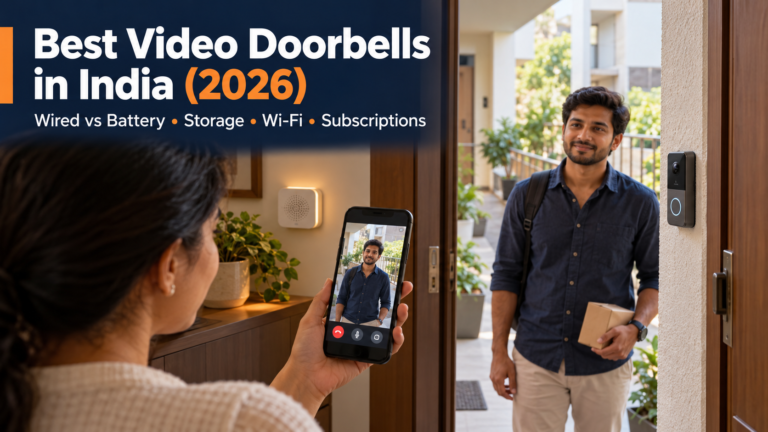
- Checking the door: camera or video doorbell, after reviewing power, placement, storage and fees.
- Door-open alerts: contact sensor, possibly with a hub.
- Repetitive floor cleaning: robot vacuum, if your floors, thresholds and clutter suit one. See Robot Vacuum vs Regular Vacuum first.
Start with high-frequency tasks; rare annoyances may not repay the cost.
Step 2: Choose a Smart-Home Ecosystem Before Buying Too Much
An ecosystem combines device control and routines.
- Alexa can control compatible products through Alexa-enabled devices and the Alexa app.
- Google Home combines compatible devices in the Google Home app and can add voice control through Google Assistant devices.
- Apple Home suits Apple-focused households, but some Matter and Thread functions require compatible Apple hardware.
- Manufacturer apps may be required for setup and model-specific features.
- Matter is an interoperability standard, not a voice assistant.
Check future lights, plugs, sensors and cameras before committing. This reduces duplicate hubs and apps.
Matter can ease cross-platform control, but optional features need not appear identically. Google notes that not all supported Matter device types are fully supported. Verify the exact feature. Connectivity Standards Alliance, Google Home Developers

Step 3: Check Your Home Wi-Fi
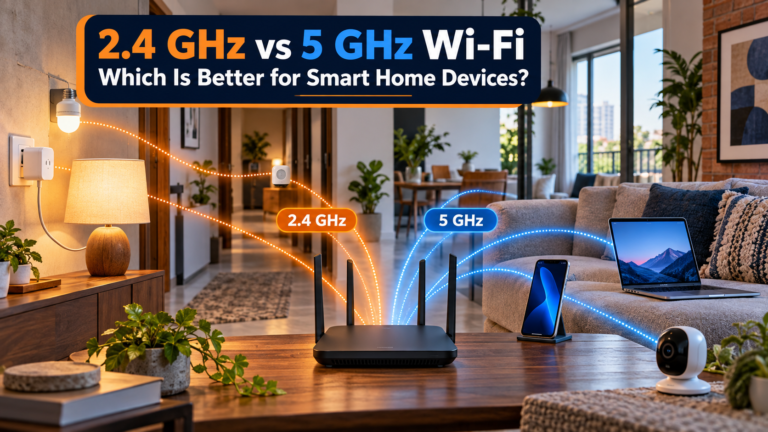
Many affordable devices connect directly to Wi-Fi and still use 2.4GHz only. TP-Link specifies it for the Tapo P110 plug; Qubo does the same for its Smart Cam 360. Check each model rather than assuming 5GHz support. TP-Link India, Qubo
Check:
- Test the phone’s Wi-Fi signal where the device will sit.
- Place the router in an open, reasonably central position where practical.
- Remember that thick brick or concrete walls can weaken coverage.
- Check whether a combined 2.4/5GHz network is supported during setup.
- Do not replace a working router based only on marketing.
Fix a genuine coverage problem before buying networking equipment just because it is marketed for smart homes.
If a plug or bulb refuses to connect, follow our 2.4 GHz and 5 GHz smart-home setup guide before buying another router.
Step 4: Start With a Smart Plug
A smart plug can add schedules, remote/voice control and sometimes energy monitoring. TP-Link lists these for the P110, plus no hub and same-LAN app control during an outage. Do not generalise. TP-Link India
Good candidates include lamps and simple appliances that safely resume after power returns. Check:
- the plug’s voltage, current and maximum load;
- the appliance’s rated input and startup load;
- the plug and appliance manufacturer’s instructions;
- whether the appliance resumes safely after power is restored;
- the socket and plug type used in your home.
The India-market P110 is rated 220–230V, 16A and 3,680W maximum, but appliance restrictions still apply. Never connect cooking, heating or safety-critical equipment unless both manufacturers explicitly permit it.
Step 5: Add Smart Lighting Only Where It Helps
Replace only lights that benefit from scheduling, dimming or adjustable colour temperature:
- bedside lighting;
- entry lighting;
- a living-room lamp;
- a light you regularly forget to switch off;
- a light that needs a predictable evening schedule.
Smart bulb versus smart switch
A smart bulb is renter-friendly but normally needs its wall switch left on. A smart switch preserves wall control, but wiring, neutral, load and ecosystem requirements vary. Use a qualified electrician.
Step 6: Do You Actually Need a Smart Speaker?
A smart speaker is optional; a phone app may be enough.
Add one only when voice control, timers, audio or accessibility functions justify the cost.
Step 7: Add Sensors to Make the Home Actually “Smart”
Remote control is not automation. A phone-controlled bulb is convenient; a sensor-triggered light is automated.
Useful sensor categories include:
- motion sensors for passage or utility lighting;
- door/window sensors for alerts or routines;
- temperature/humidity sensors for monitoring conditions;
- water-leak sensors near suitable plumbing or appliances.
Before buying, check the complete chain: sensor, hub or border router, ecosystem, target device and automation rule.
Step 8: Add Security Devices Carefully
Check:
- indoor or outdoor suitability;
- camera field of view and placement;
- local versus cloud recording;
- subscription fees and what stops without payment;
- mains, battery or low-voltage power;
- internet dependency and outage behaviour;
- notification controls;
- warranty and long-term India support;
- who in the household can access recordings.
Qubo lists microSD or cloud storage and optional cloud plans from ₹1,490/year for its 3MP camera. TP-Link’s C200 offers microSD storage and subscription-based Tapo Care. Recheck plans and features. Qubo, TP-Link India
Before adding a doorbell camera, check entrance Wi-Fi and three-year storage costs.
Step 9: Build Useful Routines
Start with routines that are easy to understand and reverse:
- Good Morning: selected lights turn on at an appropriate time.
- Leaving Home: compatible lights and suitable plug-controlled devices turn off.
- Evening: selected lighting switches on or changes brightness.
- Door Opened: a notification is sent, where supported.
- Water Leak: an immediate alert is sent, where supported.
Actual triggers, conditions and actions vary by device and ecosystem. Avoid routines that can start heaters, cooking equipment or dangerous machinery unattended.
Step 10: Expand Room by Room
Live with each stage before buying the next group.
- Bedroom: one useful light and, if appropriate, a plug for a simple device.
- Living room: selected lighting, optional voice assistant and suitable appliance control.
- Entrance: sensor, doorbell or camera only for a genuine need.
- Kitchen: never remotely switch cooking or heating appliances unless both products explicitly approve it.
- Bathroom/utility: consider a suitably placed water-leak sensor.
For whole-home upkeep priorities beyond connected devices, see The Ultimate Home Maintenance Checklist.
Best Low-Cost Smart-Home Devices to Consider First
| Device | Typical use | Beginner value | Extra equipment needed? |
|---|---|---|---|
| Smart plug | Suitable appliance or lamp control | High for suitable loads | Usually none; model dependent |
| Smart bulb | Lighting | High in selected locations | Usually none; model dependent |
| Smart speaker | Voice control, timers and audio | Optional | Compatible ecosystem and services |
| Motion sensor | Triggering automations | High when tied to a clear task | Hub may be required |
| Door sensor | Alerts and automations | Useful | Model dependent; hub often required |
| Camera | Monitoring | Need dependent | Storage media or subscription may apply |

Ready to compare actual products? See our Best Smart Home Devices in India for Beginners guide for recommended plugs, bulbs, speakers, cameras, sensors and other starter devices.
Wi-Fi vs Zigbee vs Thread vs Matter
Wi-Fi
Many plugs, bulbs and cameras connect directly to a router, but band, app and cloud requirements vary.
Zigbee
Zigbee is a low-power mesh standard commonly using a compatible coordinator or hub. The label alone does not guarantee compatibility with every branded hub. Connectivity Standards Alliance
Thread
Thread is a low-power, IP-based mesh. A Thread border router links it to the wider IP network and may be built into a compatible speaker, display or other device. Thread Group
Matter
Matter is an IP-based interoperability standard running over Wi-Fi, Ethernet or Thread; Bluetooth may assist setup. It is neither a radio band nor a voice assistant. Confirm the exact certified product and platform features. Matter FAQ
Do You Need a Smart-Home Hub?
Not necessarily. Many Wi-Fi devices connect directly; others need a manufacturer hub, Zigbee coordinator, Thread border router or ecosystem controller.
Apple says Thread accessories need compatible Thread-capable hardware for full operation. Requirements differ by platform. Apple Support
Never buy a hub simply because a smart-home guide says every smart home needs one. Buy it when the devices or automations you actually want require it.
Hidden Costs That Can Break a Smart-Home Budget
Total ownership cost can include:
- cloud subscriptions and camera storage;
- microSD cards;
- replacement batteries;
- hubs or Thread border routers;
- electrical installation;
- extra smart speakers;
- a network upgrade needed to fix proven coverage problems;
- proprietary accessories;
- replacement after software support ends;
- ecosystem lock-in if you later switch platforms;
- standby electricity across many devices.
Compare first-year and three-year costs. A ₹2,900 camera with a ₹1,490 annual plan is not merely a ₹2,900 purchase. Local storage may avoid a fee, but confirm which features remain.
Smart-Home Privacy on a Budget
Prefer manufacturers that publish support, privacy and update information. Use unique passwords, enable multi-factor authentication where offered, update firmware/apps, review permissions and limit account access.
Review camera/microphone placement, cloud retention and sharing. The US FTC likewise recommends replacing default credentials, avoiding password reuse, using two-factor authentication and applying updates. FTC guidance
Avoid unknown ultra-cheap products with poor support, abandoned apps or unclear data practices.
What Happens During a Power Cut or Internet Outage?
Power cut
Mains-powered devices stop without power unless they and the network have backup. Battery devices may keep sensing, but remote alerts can still require a powered hub, router and internet.
Internet outage
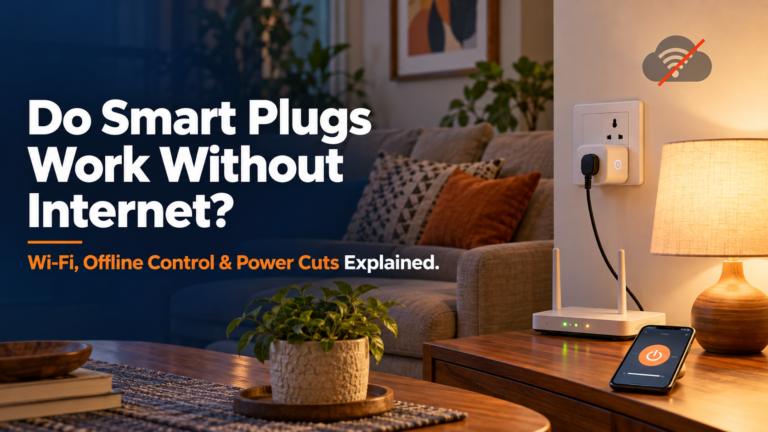
Local functions may continue while cloud control, remote access or voice services stop. TP-Link says the P110 remains app-controllable on the same LAN offline; do not generalise this. Test important routines safely.
Before buying Wi-Fi-based devices, understand what happens when your internet connection fails. Our guide on whether smart plugs work without internet explains which functions may continue working offline.
Budget Smart Home for Renters
Renters can build a useful setup without rewiring. Prioritise portable products:
- smart bulbs;
- smart plugs;
- portable speakers;
- selected tabletop cameras;
- adhesive or battery sensors, where removal will not damage surfaces.
Keep original bulbs and fittings for move-out. Obtain permission before drilling, replacing switches or making permanent electrical changes, and use appropriate professional installation.
What Not to Buy at the Beginning
Avoid buying these prematurely:
- a smart device for every room before proving value in one;
- multiple voice assistants without a reason;
- incompatible ecosystems that erase sale-price savings;
- expensive appliances merely for app control;
- advanced hubs before a planned automation requires one;
- sensors without planned alerts or actions;
- unknown IoT products with poor security or app support;
- devices with unbudgeted subscriptions;
- gadgets that solve no recurring problem.
The cheapest smart-home device is still a waste of money if you stop using it after a week.
Sample Budget Smart-Home Roadmap
| Stage | Goal | Possible device | Why add it |
|---|---|---|---|
| Phase 1 — Solve one problem | Test practical value | One bulb or suitable smart plug | Low-cost learning |
| Phase 2 — Establish an ecosystem | Simplify control | Existing phone app; optional speaker later | Fewer compatibility surprises |
| Phase 3 — Add automation | Remove a repeated action | Motion, contact or leak sensor plus required hub | Moves beyond remote control |
| Phase 4 — Add security | Address a real monitoring need | One suitable camera, doorbell or sensor | Focused coverage without overspending |
| Phase 5 — Expand carefully | Extend proven benefits | Additional compatible devices room by room | Controlled cost and complexity |
If cleaning automation is part of your plan, compare the true workload and maintenance in Best Cleaning Gadgets That Actually Make Housework Easier.
Smart-Home Budget Checklist

Before purchasing anything, ask:
- What problem does this device solve?
- Will I use it regularly?
- Does it work with my chosen ecosystem?
- Does it require a hub or border router?
- Does it require a subscription?
- Will it work with my Wi-Fi and plug/socket?
- What happens without internet or power?
- Are replacement parts or batteries available?
- Is warranty and service available in India?
- Is the manufacturer likely to support it?
- Am I paying for features I do not need?
- Can a simpler non-smart product solve the same problem?
Common Budget Smart-Home Mistakes
Common mistakes include buying only for a discount, mixing too many apps, ignoring Wi-Fi, hubs, subscriptions or electrical ratings, placing cameras without a privacy review, assuming Matter makes every feature identical, and automating everything at once.
The cure is simple: document the problem, compatibility, full cost and expected benefit before checkout.
Final Verdict: How Should You Start a Smart Home on a Budget?
Use this sequence:
Problem → Ecosystem → First Device → Useful Automation → Sensors/Security → Gradual Expansion
A successful smart home on a budget is not the home with the most connected gadgets. It is the home where a small number of well-chosen devices quietly remove repetitive tasks without creating new maintenance, privacy or compatibility problems.
Start with one problem, spend only enough to solve it well, and add the next smart device only when it delivers a clear benefit.
Frequently Asked Questions
How much does it cost to start a smart home in India?
A very basic setup can start below ₹1,000 with one compatible smart bulb or plug, while a small practical setup with several devices may cost roughly ₹3,500–₹8,000. Hubs, sensors, cameras, subscriptions and professional installation can increase the total.
What is the cheapest way to start a smart home?
Solve one recurring problem with a compatible bulb or correctly rated plug; start with your phone.
What smart-home device should I buy first?
Usually one bulb or a suitable plug. For detection, check the hub requirement.
Do I need Alexa or Google Home for a smart home?
No. Many work through their app. Add a voice ecosystem only when useful.
Do I need a hub for smart-home devices?
Not always. Some products need a hub, coordinator, border router or controller.
Can I build a smart home without rewiring?
Yes. Bulbs, plugs, portable speakers, tabletop cameras and battery sensors often avoid rewiring. Permanent switches may need permission and professional installation.
Can smart-home devices work without internet?
Sometimes. Local control may continue while cloud or remote features stop. Check each model.
Are smart plugs safe to use?
Use a certified, correctly rated plug according to both manuals; avoid unsuitable high-load or heating appliances.
Is Matter important when buying smart-home devices?
Matter improves interoperability, but features vary. Confirm exact certification and platform support.
Can renters build a smart home?
Yes. Prefer portable, reversible products. Avoid wiring or drilling without permission and suitable professional help.