You buy a smart plug, bulb or camera, open its app, and see: “Connect to a 2.4 GHz Wi-Fi network.” Your phone is on 5 GHz. Is the new device outdated? Do you need another router, or must your phone stay on 2.4 GHz forever?
In 2.4 GHz vs 5 GHz Wi-Fi for smart home devices, the useful question is whether the supported band provides a reliable connection for that device. For many plugs and bulbs, coverage and compatibility matter more than high throughput. A camera may benefit from 5 GHz when it supports it, and coverage is dependable. Higher GHz does not automatically mean better.
Quick Answer: A 2.4-GHz-only plug can normally share a dual-band home network with a 5-GHz phone. The phone may need a temporary 2.4-GHz connection during pairing if its manufacturer says so. Check the device’s supported band, 2.4-GHz router setting, setup instructions, security mode and network isolation before buying networking hardware.
2.4 GHz vs 5 GHz Wi-Fi for Smart Home Devices: Quick Answer
These are tendencies, not promises about a particular flat, router or product. Router design, Wi-Fi standard, antennas, channels, channel width, transmit power, firmware, building materials and neighbouring traffic also matter. Apple’s router guidance distinguishes bands, channel widths and security settings; Cisco’s wireless reference describes their radio and channel constraints.
| Factor | 2.4 GHz | 5 GHz |
|---|---|---|
| Range tendency | Often reaches farther under comparable conditions | Often shorter practical reach |
| Walls and floors | Generally less loss than 5 GHz, but heavy construction still hurts | Generally more affected by obstacles |
| Available bandwidth | Less spectrum and fewer usable wide channels | More room for higher-throughput connections |
| Congestion/interference | Often crowded in apartment buildings; non-Wi-Fi sources also matter | May be less crowded locally, but neighbours still compete |
| Device compatibility | Common among Wi-Fi plugs, bulbs and some cameras | Only when the product specifies 5-GHz support |
| Video/high-bandwidth use | Can work if the camera supports it and the connection is stable | May help a compatible camera near adequate coverage |
| Power use | No universal battery-life advantage: radio design and duty cycle matter | No universal disadvantage: compare actual device designs |
| Typical IoT suitability | Often enough for small control/status messages | Useful when supported and higher throughput is helpful |
| Initial setup | Some apps specifically request this band | Phone may need to switch temporarily for some pairing flows |
Choose 2.4 GHz when the product only supports it, or its installation location needs its coverage range. Choose 5 GHz for a compatible device that benefits from throughput and receives a stable signal. Let the router manage both when normal pairing and everyday control work; a combined network name is usually convenient. This is EasyFixGear’s practical interpretation of the documented trade-offs, not a measurement of your home.
What Do 2.4 GHz and 5 GHz Actually Mean?
GHz means gigahertz, a measure of the frequency of the radio signal. It does not tell you your internet-plan speed, Wi-Fi signal percentage or whether the device uses Wi-Fi 5, 6 or 7. A router can carry local traffic between devices even if broadband is unavailable; an app’s cloud functions are a separate question.
Radio frequency influences propagation and the spectrum available for channels. Actual throughput also depends on the Wi-Fi technology at both ends, channel width, signal quality and competing traffic. “5 GHz internet” usually means a 5-GHz Wi-Fi link, not a different kind of internet service. Google’s dual-band setup guidance explicitly describes devices communicating across the two bands through a home router.
Why Do So Many Smart-Home Devices Use 2.4 GHz?
Consider a plug behind a sofa or a bulb beyond a brick partition. Both send relatively small commands and status updates; neither gains much from a headline peak data rate. The coverage tendency of 2.4 GHz can suit such placements. Widely available radio components and compatibility with established home Wi-Fi networks are additional practical design reasons. These explain a market pattern; they do not prove the motives of every manufacturer or a lower power draw for every product.
For documented examples, India’s Tapo L530B bulb specifies IEEE 802.11b/g/n on 2.4 GHz only, while TP-Link’s smart-plug setup FAQ says the covered plugs do not connect to 5 GHz. A “2.4 GHz only” label means the product’s Wi-Fi radio cannot join a 5 GHz network; it says nothing by itself about cloud dependence, offline schedules or overall quality.
Sensors may instead use Bluetooth, Zigbee or Thread and connect through a hub or border router. Check the actual product, not the category label.
What Is 5 GHz Better At?
The 5-GHz band typically gives a compatible device more opportunities for higher-throughput links, especially near the access point. Phones, laptops, TVs, streaming devices and some video cameras can benefit. It may also avoid a crowded 2.4-GHz environment, although a busy 5-GHz neighbourhood can still cause problems. A smart plug switching a lamp only exchanges brief control and status information: giving it a faster possible link rarely changes that task. A video device generates sustained traffic, so its connection choice deserves closer attention. Cisco’s RF guide explains spectrum and channel-width differences.
2.4 GHz vs 5 GHz: Which Has Better Range?
All else equal, the lower frequency generally loses less signal over distance and through common obstacles. “All else equal” rarely describes an actual house. Router and client antennas, orientation, power limits, channel conditions and construction can outweigh an oversimplified band comparison.
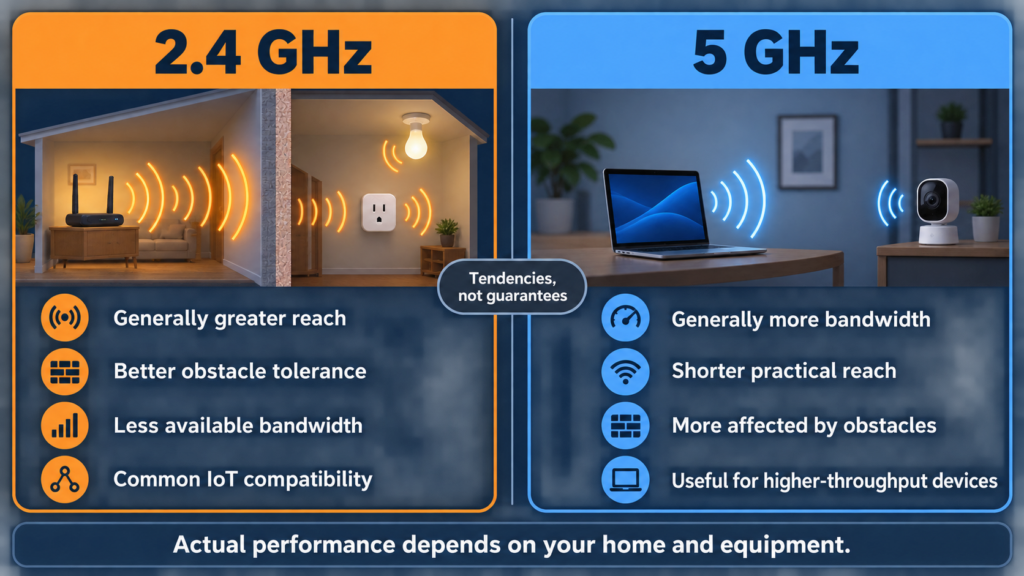
In Indian homes, brick infill, reinforced-concrete columns and slabs, metal doors and cupboards can all affect the path. A bulb across a concrete wall may receive a poor connection even on 2.4 GHz; a 5-GHz camera in the same room as the router may work well. Move the router or add appropriate coverage after checking the actual location. An advertised router range cannot predict the signal through your particular walls and floors. Cisco’s RF reference provides the underlying radio-planning context.
Is 2.4 GHz More Crowded?
Often. Nearby flats may have numerous 2.4-GHz networks, while Bluetooth and some household equipment also use or affect this spectrum. A phone can show several signal bars while retries and competing transmissions make setup unreliable: a strong signal does not mean a clean channel.
With common 20-MHz planning, channels 1, 6 and 11 are the familiar non-overlapping set; availability and permitted settings depend on local regulatory configuration. Cisco discusses that channel plan, and TP-Link’s current plug troubleshooting names these channels and 20 MHz for affected setups. Leave the router’s country/region correct and use its supported automatic selection before considering a manual change. Do not select channels outside local permissions. We make no claim that a particular Indian building has a fixed best channel.
Is 5 GHz Faster—and Does That Matter for Smart Devices?
Peak Wi-Fi link rate, real file-transfer throughput, internet-plan speed and a gadget’s actual data demand are different numbers. Faster available radio capacity can help a laptop or camera; a plug or bulb sending on/off and state messages normally does not need it. Conversely, a 2.4-GHz camera can work when the maker supports that band and the connection is adequate: Tapo’s India C220 camera is a documented 2.4-GHz example. Its specifications don’t guarantee reliable streaming in every installation.
Can My Phone Be on 5 GHz While My Smart Plug Uses 2.4 GHz?
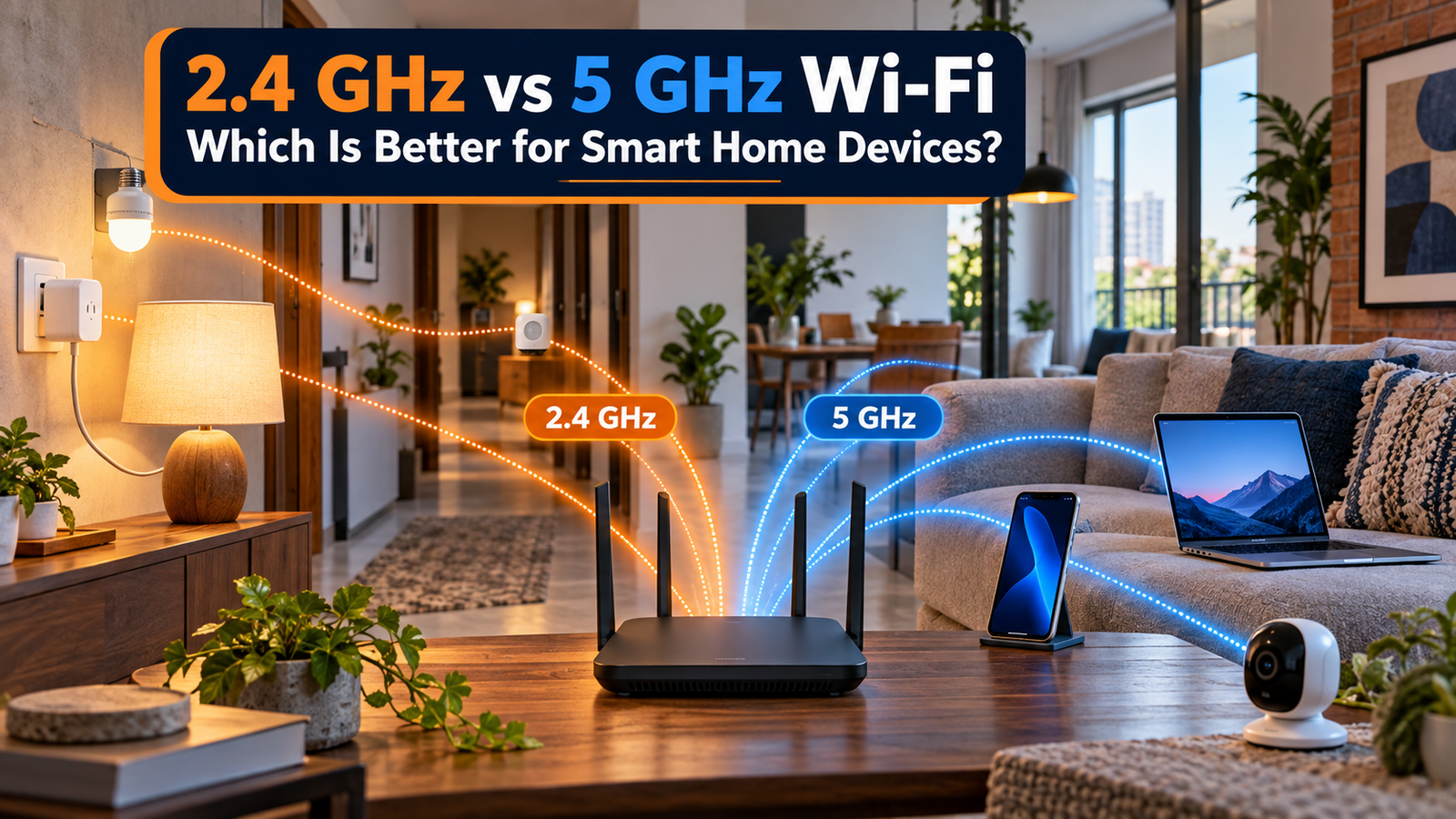
Usually yes. A properly configured dual-band router can bridge its 5 GHz and 2.4 GHz clients onto the same home network:
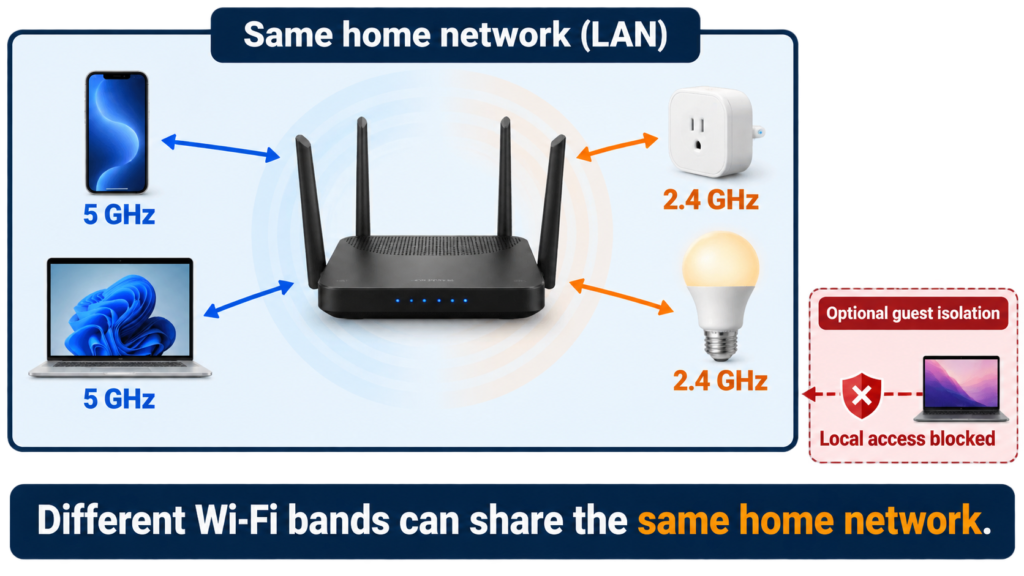
Phone (5 GHz) → router/local network → smart plug (2.4 GHz).
The phone does not need to stay on 2.4 GHz merely to control the plug afterwards. Google explicitly says most routers permit communication across these bands. However, a guest network, isolation setting or separate LAN can block discovery, and a particular manufacturer app may route commands through its cloud instead of directly across your LAN. Radio coexistence does not guarantee offline app control. Google setup help; EasyFixGear’s separate smart-plug offline guide explains the internet/cloud distinction.
Pairing is different from everyday use. During setup, an app might take the phone’s current SSID as the network to give the device. WiZ’s current pairing instructions ask users of separately named networks to put the phone on 2.4 GHz for pairing. Follow your exact model’s setup flow; once paired, the phone can normally return to its usual band if the networks can communicate and the app supports that path.
Should 2.4 GHz and 5 GHz Have the Same Wi-Fi Name?
One SSID (network name) and password make daily use simpler, and supported routers can steer dual-band clients toward a suitable band. TP-Link describes this behaviour in Smart Connect. Apple’s router recommendations also favour a consistent network name for reliable roaming.
Separate names make it easy to identify the 2.4-GHz network and connect a phone to it temporarily during a finicky pairing procedure. They also create additional choices and may affect roaming or require reconnecting devices if credentials change. Keep a working combined setup. If a maker’s instructions call for a 2.4-GHz phone and pairing fails, use your router’s documented temporary IoT mode or separate band option, record the original settings and restore the convenient arrangement when it works.
What Is Band Steering, and Why Can Smart-Device Setup Fail?
With a combined SSID, a router may encourage a dual-band phone toward 5 GHz. The 2.4-GHz-only gadget cannot be pushed onto a 5-GHz radio it does not have. The difficulty is often provisioning: the app may select the wrong band’s network details, expect the phone and device on the same setup band, or fail to discover a temporary device hotspot. Router implementations differ. TP-Link notes that separating bands can help some devices under Smart Connect; its plug FAQ further distinguishes Wi-Fi and Bluetooth setup modes by hardware version. Do not assume a single “band steering fix” applies everywhere.
Do You Need a Separate 2.4 GHz Router for Smart Devices?
Usually no. A dual-band router normally serves both bands simultaneously. First, confirm that its 2.4-GHz radio is enabled, the plug supports the chosen network security, and the phone and device are not isolated by a guest network. Check an unusual mesh or extender setup against its own instructions. A second router may create another isolated network and make the problem harder; a coverage problem may call for a correctly configured access point or mesh node only after placement and settings are checked.
Do Smart Devices Work with Mesh Wi-Fi?
Yes, if the particular mesh offers the device’s supported band and an appropriate network. Mesh describes cooperating access points; 2.4 GHz/5 GHz describe radio bands. Mesh products often use one SSID and steer compatible clients, so pairing a 2.4-GHz-only gadget can have the same app-specific issues as a single router. A distant mesh node with weak backhaul is not guaranteed to help. Check whether an IoT network or guest option isolates devices and whether your mesh offers a temporary setup mode. Google’s Nest Wifi guidance discusses cross-band communication and isolation; other systems have different controls.
Will an Older 2.4 GHz Smart Device Work with a New Wi-Fi 6 or Wi-Fi 7 Router?
Often yes, if the router supports the older client’s Wi-Fi mode on an enabled 2.4-GHz radio and compatible security. The band and generation are separate specifications:
| Label | Broad meaning relevant here |
|---|---|
| Wi-Fi 4 (802.11n) | Can operate on 2.4 and/or 5 GHz depending on the device |
| Wi-Fi 5 (802.11ac) | Uses 5 GHz; a router sold as Wi-Fi 5 may also support older 2.4 GHz modes |
| Wi-Fi 6 (802.11ax) | Operates on 2.4 and/or 5 GHz according to hardware |
| Wi-Fi 6E | Extends Wi-Fi 6 into 6 GHz on supported equipment; products can also offer 2.4/5 GHz |
| Wi-Fi 7 (802.11be) | Can use 2.4, 5 and 6 GHz capabilities as equipped; check each device’s supported radios |
Google’s Wi-Fi 6E explanation lists all three bands on one tri-band system, while a Wi-Fi Alliance certification record illustrates a Wi-Fi 7 access point offering 2.4, 5 and 6 GHz. This does not mean every Wi-Fi 7 client includes every band. A new router does not make an ordinary 2.4-GHz plug obsolete; check 2.4-GHz enablement, supported older radio modes, WPA security, device firmware, channels, isolation and app provisioning before blaming its generation.
WPA2, WPA3 and smart-home compatibility
An older IoT radio may fail on WPA3-only settings, while another product supports WPA3. WiZ’s current setup guidance specifies WPA2 and WPA3 Personal for its covered devices; do not generalise that to a different bulb. Apple describes WPA2/WPA3 Transitional mode as a way to let compatible newer clients use WPA3 and older ones use WPA2-AES. Check your router and device documentation, keep encryption enabled, and prefer supported secure settings and firmware. Do not leave a network open or permanently disable security to pair a gadget. Apple router security guidance.
Why Smart Plugs Commonly Use 2.4 GHz
Their switching and status messages are small, and a plug may sit behind furniture or away from the router. A documented 2.4-GHz limitation is a compatibility requirement, not evidence it performs poorly. See the exact India-model specifications in Best Smart Plugs in India. The Wi-Fi band tells you how it reaches the router; it does not tell you whether schedules, voice, local app control or remote access work without broadband. For those separate dependencies, read Do Smart Plugs Work Without Internet?.
Why Many Smart Bulbs Also Use 2.4 GHz
Bulbs need modest command bandwidth and can sit in poorly covered rooms. The India-market Tapo L530B specifies 2.4-GHz Wi-Fi only, and WiZ documents 2.4-GHz pairing for its covered lights. But a smart bulb is not always a Wi-Fi client: Bluetooth, Zigbee, Thread or a hub-based lighting system may provide its connection. Check its exact socket, connectivity and controller requirements alongside the lighting decision in Smart Bulb vs Regular Bulb. Tapo L530B specification; WiZ setup help.
What About Cameras and Video Doorbells?
Video can use sustained throughput, so a compatible 5-GHz camera may benefit if its installation spot has reliable coverage. Do not assume cameras always support or need 5 GHz. The India-market Tapo C220 lists 2.4-GHz Wi-Fi; evaluate a doorbell’s exact regional specification and signal at its mounting location, which might be beyond an exterior wall. Check whether the camera records locally, streams through a cloud, or has wired Ethernet before choosing a band. Tapo C220 India specifications.
Use our video doorbell guide to compare network bands alongside storage and mounting.
Matter and Thread: Do They Replace 2.4 GHz or 5 GHz Wi-Fi?
No. Matter is a smart-home interoperability protocol working over supported network transports. A Matter-over-Wi-Fi device still needs its specified Wi-Fi band; a Matter-over-Thread device uses a separate low-power mesh network and usually needs a compatible border router to reach the home IP network. Bluetooth Low Energy has commonly helped with setup, but current Matter versions also include other commissioning options; do not infer that every Matter product needs Bluetooth. Zigbee is another separate technology, sometimes bridged into Matter. None of these labels reveals an individual product’s band without its specifications. Connectivity Standards Alliance Matter FAQ; CSA Matter 1.4.2 update.
Smart Device Won’t Connect to 2.4 GHz Wi-Fi? Try This
Work from the device outward. Change one thing at a time and test again.
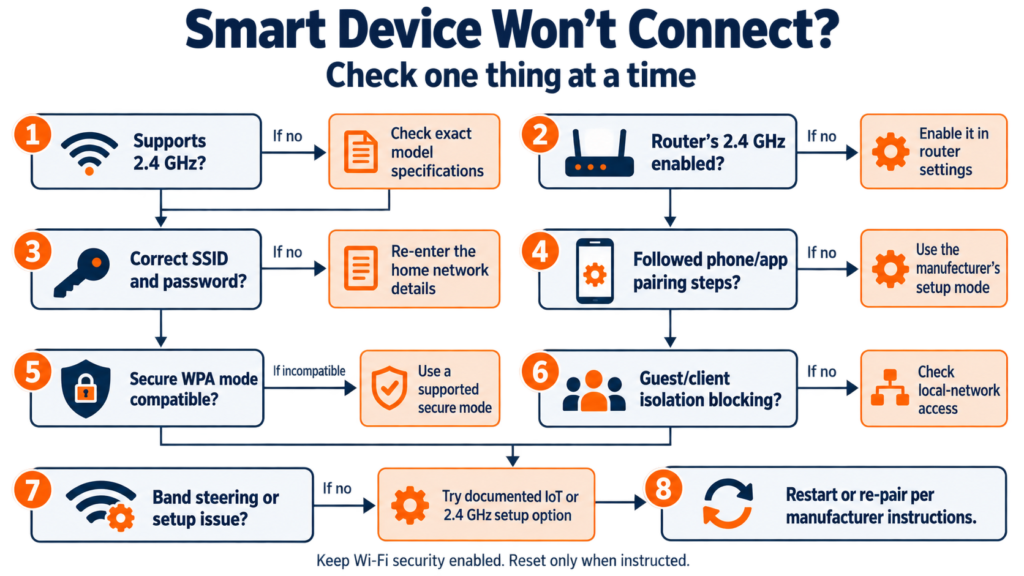
- Read the exact model and regional manual. Verify 2.4 GHz support, pairing mode and indicator light; distinguish Bluetooth setup from a temporary Wi-Fi hotspot.
- Check router bands. Confirm 2.4 GHz is enabled and the network is visible as required by the setup instructions.
- Check credentials. Select the intended SSID and re-enter its password; do not confuse a guest or extender network with the main LAN.
- Bring the device near the router temporarily. If setup succeeds close by but fails at its installation point, investigate coverage or interference.
- Follow the app’s phone instructions. Grant necessary local-network, Bluetooth or location permissions only when relevant; allow the app to connect to the device’s temporary network if it requests it.
- Try a documented 2.4-GHz setup path. If a combined SSID confuses pairing, select a separate 2.4-GHz SSID or router IoT mode temporarily if your router supports one. Reconnect the phone normally afterwards.
- Compare security requirements. Read the device’s WPA2/WPA3 support and use a secure compatible mode supported by the router. Avoid open Wi-Fi.
- Check isolation. Guest mode, AP/client isolation, separate subnets or an extender can block local discovery even with working internet.
- Check the phone connection. A VPN, mobile-data fallback or denied app permission can affect some setup flows; follow the app’s own guidance.
- Restart and update thoughtfully. Follow manufacturer restart steps, then consider router firmware, device firmware and app updates. Firmware updates may require that the device first connect.
- Reset only when instructed. A factory reset can erase pairing or schedules. Use the exact model’s reset and re-pair procedure after the simpler checks.
TP-Link’s current Tapo setup FAQ covers band, password, signal, app and model-specific modes; Google’s smart-device setup help covers bridging and AP isolation. Neither is a universal instruction to alter every router’s advanced settings.
My Phone Keeps Connecting to 5 GHz—How Do I Set Up a 2.4 GHz Device?
Try the maker’s pairing steps as written first. If it requires the phone on 2.4 GHz, connect the phone to your router’s dedicated 2.4-GHz SSID if available. Otherwise, consult the router’s documented IoT or temporary band setting; restore the original settings once pairing succeeds. Moving the phone farther away sometimes changes a band choice, but it is unreliable and may weaken the setup connection. WiZ explicitly asks for a 2.4-GHz phone when the home networks have separate names, while Google notes that most routers bridge bands. These are compatible statements about different stages of use. WiZ pairing; Google bridging.
Should You Turn Off 5 GHz for Smart-Home Devices?
Generally no. A healthy home network can serve 2.4-GHz plugs, 5-GHz phones and laptops, and Ethernet equipment together. A product manual may recommend temporarily turning off 5 GHz during pairing; that is a diagnostic step for that product and router, not a permanent smart-home requirement. If switching bands changes your network names or disconnects working equipment, use a supported temporary setup mode or follow router support guidance instead.
Why Can Devices on the Same Wi-Fi Still Fail to See Each Other?
“Both can access the internet” does not prove they share a reachable local network. A guest SSID may keep clients apart; AP/client isolation may prevent device-to-device traffic; an extender or second router may create another subnet. Advanced homes may use VLANs, meaning intentionally separated local networks. Such separation can be useful for security but can interfere with discovery unless configured to permit the required traffic. Check the router manual and the smart-home platform’s discovery requirements before removing isolation; Google explicitly identifies AP isolation as a setup obstacle. Google help.
Does 20 MHz vs 40 MHz Matter for Smart Devices?
Yes, when 2.4 GHz is crowded. A wider 40-MHz channel takes more scarce spectrum and can overlap more nearby activity; 20 MHz often helps coexistence and reliability. Apple recommends 20 MHz on 2.4 GHz, and TP-Link recommends it as one troubleshooting setting for its affected plugs. First, leave a functioning router alone; if pairing or reliability fails, check your router’s channel-width setting and documentation. Channel width is not a guarantee or a cure for wrong passwords or isolation. Apple router settings; Tapo setup FAQ.
Practical Wi-Fi Setup for an Indian Home
Small apartment
One suitably placed dual-band router can often serve bulbs and plugs on 2.4 GHz while phones and laptops select a suitable band. Keep the existing arrangement if pairing and control work. See Smart Home on a Budget in India before expanding the device count.
Larger concrete home
A distant device beyond reinforced walls or a floor slab may need better access-point placement or additional coverage. Check the connection at its final location, not only beside the router. Moving it to 5 GHz is unlikely to cure weak coverage.
Apartment with many neighbouring networks
2.4-GHz congestion can affect reliability even with a strong signal. Check router channel selection, supported 20-MHz operation and placement before considering extra equipment; do not assume your neighbour’s channel map is fixed.
Device far from the router
Test it close to the router first to separate configuration failure from coverage failure. Then check the intended installation position. Best Smart Home Devices in India discusses choosing a device that fits its actual location and ecosystem.
Router Placement Often Matters More Than Choosing 2.4 or 5 GHz
Place an access point reasonably centrally and elevated where practical, with fewer solid obstructions between it and devices. Avoid enclosing it in a metal cabinet or hiding it behind large electronics. Check cooling and the manufacturer’s mounting guidance. Test coverage at the bulb, plug or camera location; a router inside a utility cupboard may be more consequential than the advertised generation on its box. Router-placement advice should be adjusted to wiring, safety and the layout of your home.
2.4 GHz vs 5 GHz Smart-Home Myths
| Claim | Practical correction |
|---|---|
| “5 GHz is always better.” | It can offer more throughput but may be less reliable through obstacles. |
| “2.4 GHz is obsolete.” | It remains useful and widely supported for IoT. |
| “My phone must stay on 2.4 GHz.” | Some pairing flows ask for it temporarily; everyday cross-band control normally works on an unisolated LAN. |
| “A 2.4-GHz plug needs its own router.” | An enabled 2.4-GHz radio on a dual-band router usually suffices. |
| “Wi-Fi 6 means everything uses 6 GHz.” | Wi-Fi 6 and 6 GHz are distinct; Wi-Fi 6E adds 6-GHz capability to supported equipment. |
| “5-GHz internet is faster.” | The band is the local Wi-Fi link; your broadband plan is separate. |
| “2.4- and 5-GHz devices cannot talk.” | They normally can through the same unisolated router/LAN. |
| “Disable 5 GHz forever.” | A temporary setup workaround is not an everyday requirement. |
| “More bars always means a better link.” | Congestion and retries can still impair connectivity. |
| “All smart devices need fast internet.” | Simple local commands need little bandwidth; cloud features have separate dependencies. |
Which Wi-Fi Band Should Each Device Use?
| Device | Usually suitable | Why | Important caveat |
|---|---|---|---|
| Smart plug | 2.4 GHz often sufficient | Small control messages | Use its specified band; check offline behaviour separately |
| Smart bulb | 2.4 GHz often sufficient | Modest bandwidth, varied locations | Some use hubs, Zigbee, Bluetooth or Thread |
| Simple sensor | Depends on technology | Often low data demand | May not use Wi-Fi at all |
| Smart speaker | 2.4 or 5 GHz if supported | Streaming and voice use vary | Check exact model and setup |
| Security camera | 2.4 or 5 GHz according to model | Video needs steadier throughput | Coverage and supported band decide |
| Video doorbell | Model-dependent | Outdoor mounting complicates signal | Check mounting location and specification |
| Smart TV | 5 GHz or Ethernet when suitable | Streaming can benefit | 2.4 GHz may work if supported and stable |
| Phone | Either; router may choose | Mobility and app usage | Temporary 2.4 GHz pairing may be requested |
| Laptop | 5 GHz often useful | Larger transfers and video calls | Use the more reliable supported link |
| Streaming device | 5 GHz or Ethernet when suitable | Sustained media traffic | Avoid weak 5 GHz signal |
2.4 GHz or 5 GHz? Quick Decision Tree
- Does the device support only 2.4 GHz? Use the router’s enabled 2.4 GHz network. If pairing fails, follow the setup checks below; another router is not the first step.
- Does it support both? If it carries sustained video or other high-throughput traffic and 5 GHz coverage is reliable at its final location, consider 5 GHz. If coverage is weak, test its supported 2.4 GHz option.
- Does it only send small control/status messages? 2.4 GHz is often enough, whether or not 5 GHz is offered.
- Does setup fail? Check supported band → enabled 2.4 GHz → correct SSID/password → phone/app instructions → compatible security → isolation → band steering or IoT setup mode → documented restart/reset.
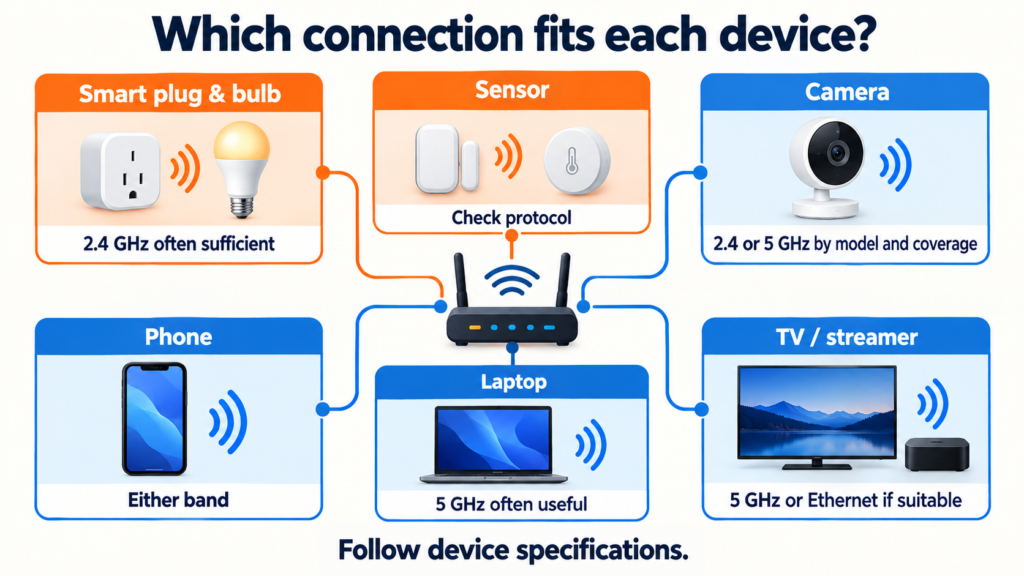
Infographic note: every branch is conditional on the specific product supporting the chosen band.
What Wi-Fi Specifications Should You Check Before Buying a Smart Device?
Check the exact regional model’s band(s) and Wi-Fi standard; supported router security; any hub, Matter or Thread requirements; setup app and account; cloud dependence versus documented local control; firmware/support policy; and the device’s actual installation location. If an offline schedule or voice function matters, look for an explicit manufacturer statement rather than inferring it from “2.4 GHz” or “Matter.” Dual-band support is useful for some applications but is not automatically necessary for a simple plug.
EasyFixGear’s Practical Recommendation
Keep a correctly configured dual-band router when it already serves your devices well. Let 2.4-GHz-only plugs and bulbs use the band they support, while phones and higher-throughput equipment use a reliable compatible connection. If setup fails, diagnose pairing, security and local-network separation before changing hardware. If a distant camera struggles, assess coverage at its mounting point before assuming a nominally faster band will help. This recommendation is an interpretation of the cited standards and manufacturer guidance; EasyFixGear did not measure this home’s range or test these devices.
2.4 GHz vs 5 GHz Wi-Fi for Smart Home Devices: Which Is Better?
There is no universal winner in 2.4 GHz vs 5 GHz Wi-Fi for smart home devices. A simple 2.4-GHz smart plug has no inherent disadvantage for switching a lamp. A compatible camera, laptop or streaming device may benefit from 5 GHz when signal quality holds up. At longer distances or behind heavy construction, coverage may decide the choice. Your 5-GHz phone can usually still control a 2.4-GHz plug on the same unisolated network; its app may ask you to join 2.4 GHz briefly while pairing. If setup fails, start with band support, router enablement and the maker’s actual instructions.
Frequently Asked Questions
1. Is 2.4 GHz or 5 GHz better for smart-home devices?
Use the device’s supported band. 2.4 GHz often suits simple IoT and harder-to-reach spots; 5 GHz can help compatible devices with greater bandwidth demand and reliable nearby coverage.
2. Why do smart plugs only use 2.4 GHz?
Many plugs need little throughput and benefit from broad compatibility and coverage. The precise hardware choice belongs to each maker; consult the exact model specification.
3. Can my phone be on 5 GHz while my smart plug is on 2.4 GHz?
Usually yes, after setup if the router bridges both bands and local communication is permitted. The app may require a temporary 2.4 GHz phone connection for pairing.
4. Do I need a separate 2.4 GHz router for smart devices?
Usually no. A dual-band router with 2.4 GHz enabled normally supports them alongside 5 GHz clients.
5. Can 2.4 GHz and 5 GHz devices communicate with each other?
Normally through the same unisolated home LAN. Guest isolation, separate subnets or an app’s cloud design can change what you can discover or control.
6. Should I separate my 2.4 GHz and 5 GHz Wi-Fi names?
Keep a combined SSID if it works. Separate names or a router’s IoT setup option can help when a documented pairing procedure needs the phone on 2.4 GHz.
7. Why won’t my smart device connect to a dual-band router?
Check 2.4-GHz enablement, SSID/password, phone pairing flow, WPA compatibility, signal, isolation and firmware before resetting it.
8. Does Wi-Fi 6 support 2.4 GHz smart devices?
A suitable Wi-Fi 6 router can serve compatible older 2.4-GHz clients if that radio and their required security/modes are enabled. Read the router specification.
9. Should security cameras use 2.4 GHz or 5 GHz?
Follow the camera’s supported bands. If both are supported, compare signal at the mounting point and the needs of its video stream; some cameras support only 2.4 GHz.
10. Should I disable 5 GHz when setting up a smart device?
Only temporarily if your device/router documentation recommends that workaround and simpler steps fail. You can normally restore 5 GHz after pairing.
Research Sources
Wi-Fi/networking standards: Wi-Fi Alliance certification example: Wi-Fi 7 radio bands; Cisco wireless RF reference.
Router/platform documentation: Apple recommended router settings; Google smart-device setup and band bridging; Google Wi-Fi 6E/Nest Wifi Pro; TP-Link Smart Connect.
Smart-device manufacturers: TP-Link Tapo plug troubleshooting; Tapo L530B India bulb; Tapo C220 India camera; WiZ V2 pairing. Manufacturer advice may differ by region, hardware revision and app version.
Matter/IoT references: Connectivity Standards Alliance Matter FAQ; CSA Matter 1.4.2 commissioning update.
Last updated: 26 September 2026